This page walks through the live Table Mahjong table one screenshot at a time. The animated in-game tutorial is still available: open the animated table tutorial, or go back to the text how-to-play guide.
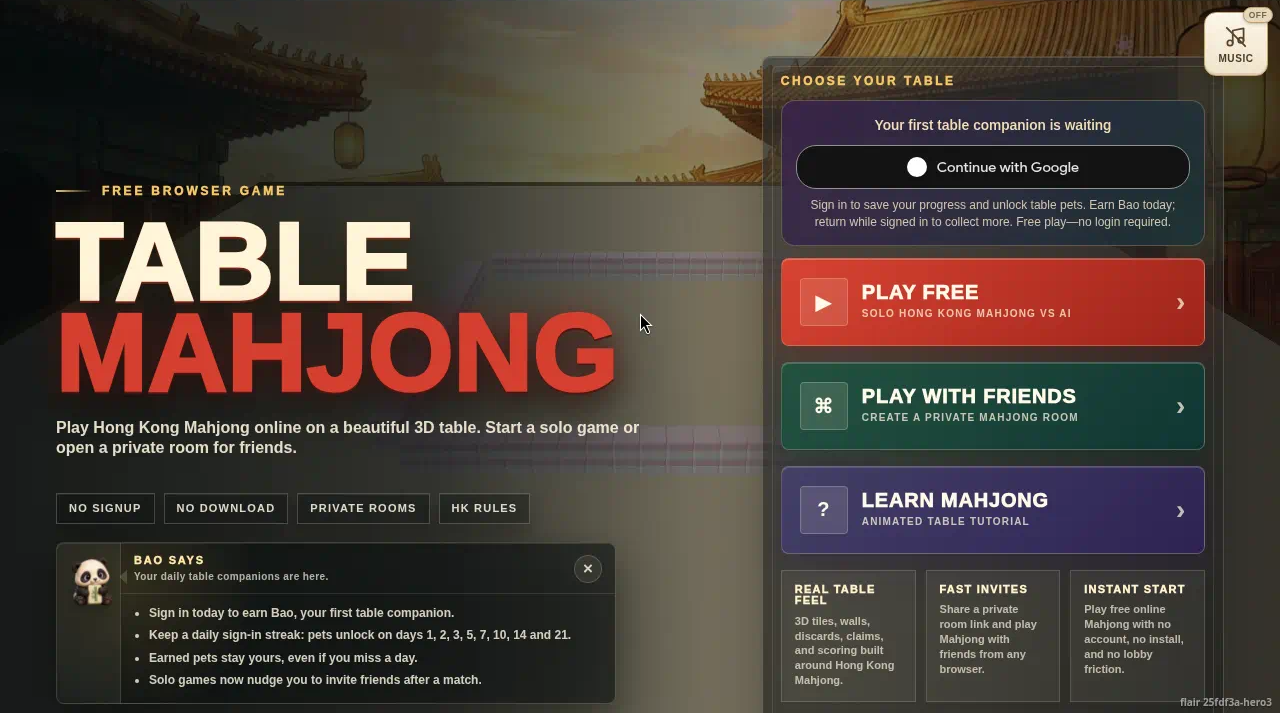
1. Start a game
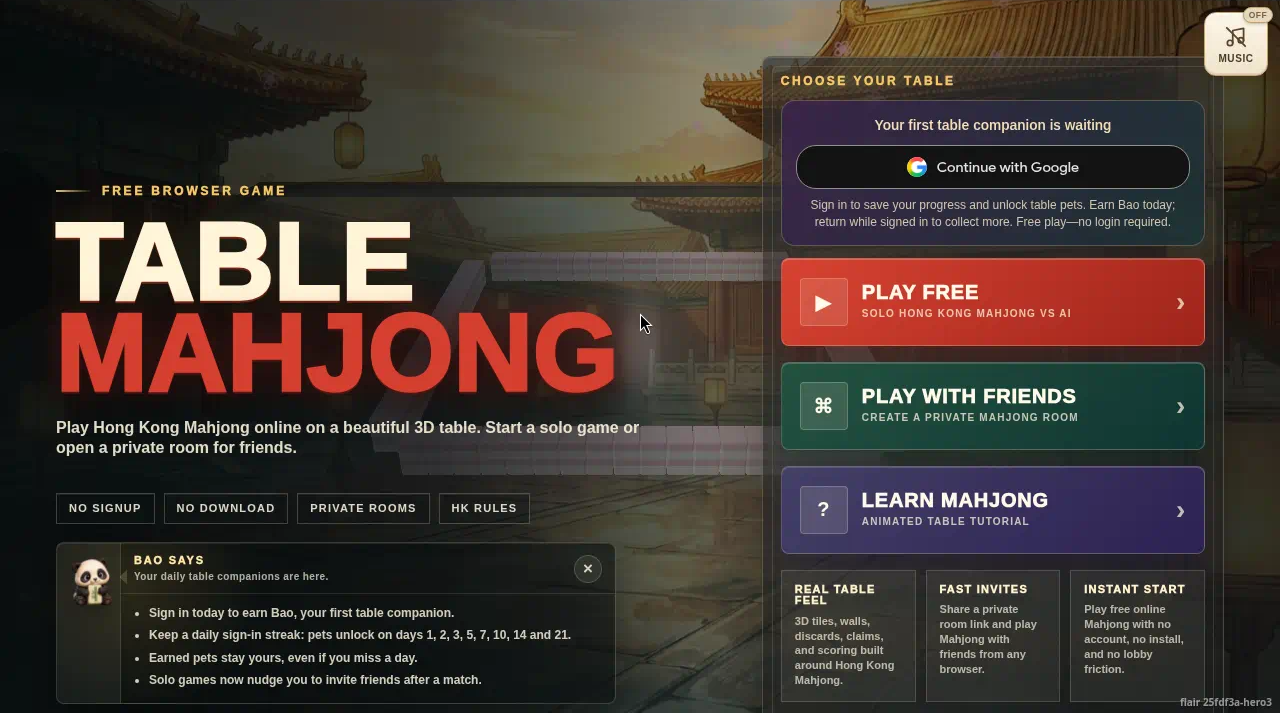
Play Free is solo vs three AI. Play with Friends opens a private room. No account, no download.
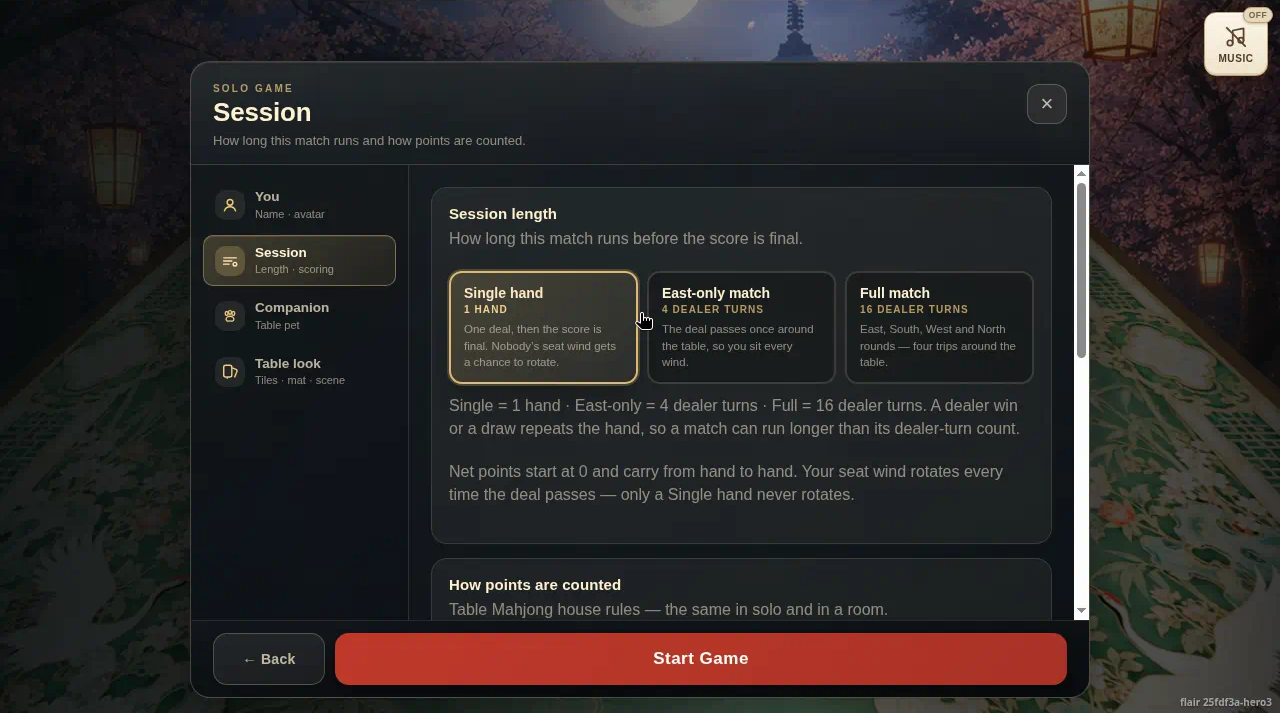
2. Session
Single hand is one deal. East-only is 4 dealer turns. Full match is 16 dealer turns (East, South, West, North). A dealer win or a draw repeats the hand. Then Start Game.
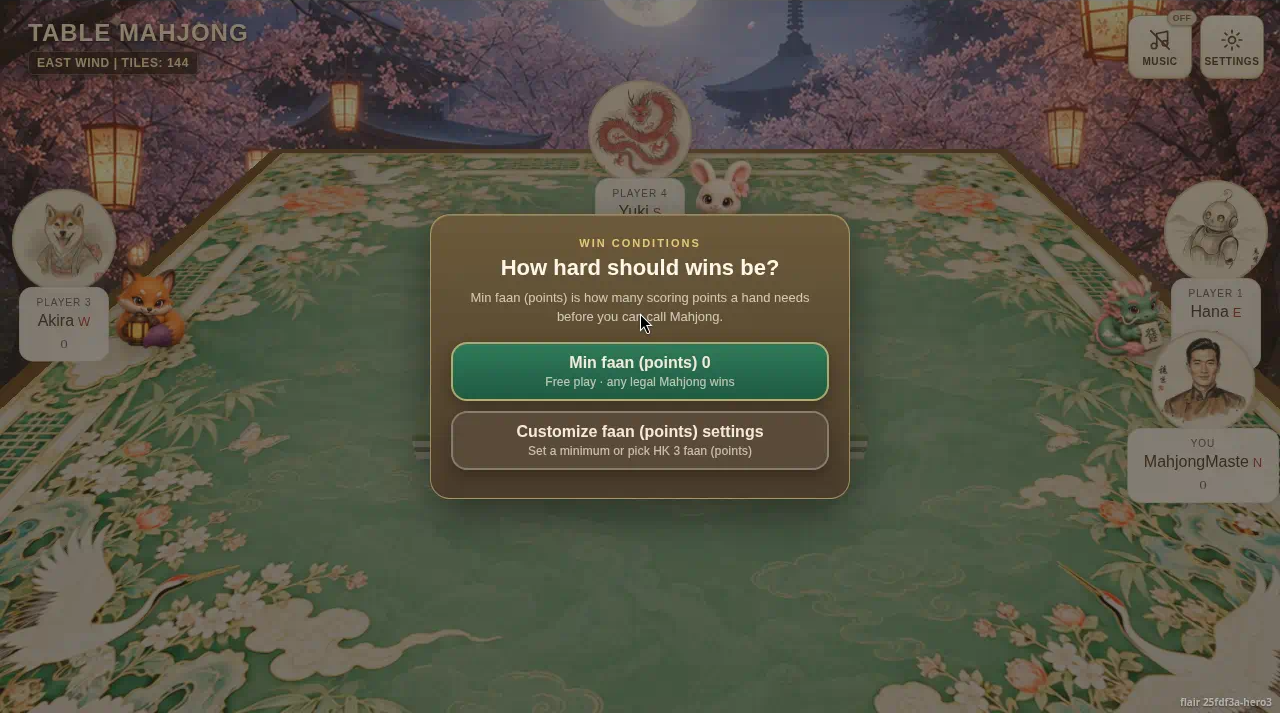
3. Win conditions
Min faan (points) 0 means any legal hand wins. Customize to set a minimum.
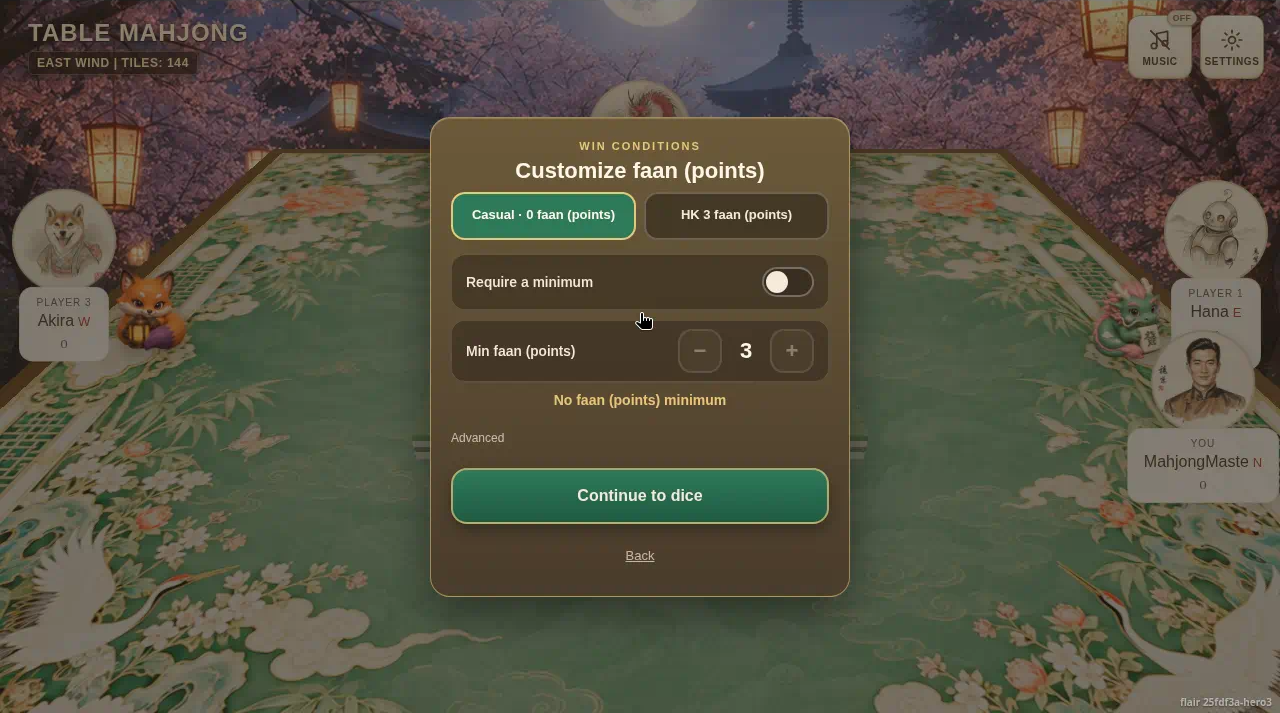
4. Customize
Casual is 0. HK 3 is the usual Hong Kong minimum. Or turn on Require a minimum and set the number. Continue to dice. It sticks for the match.
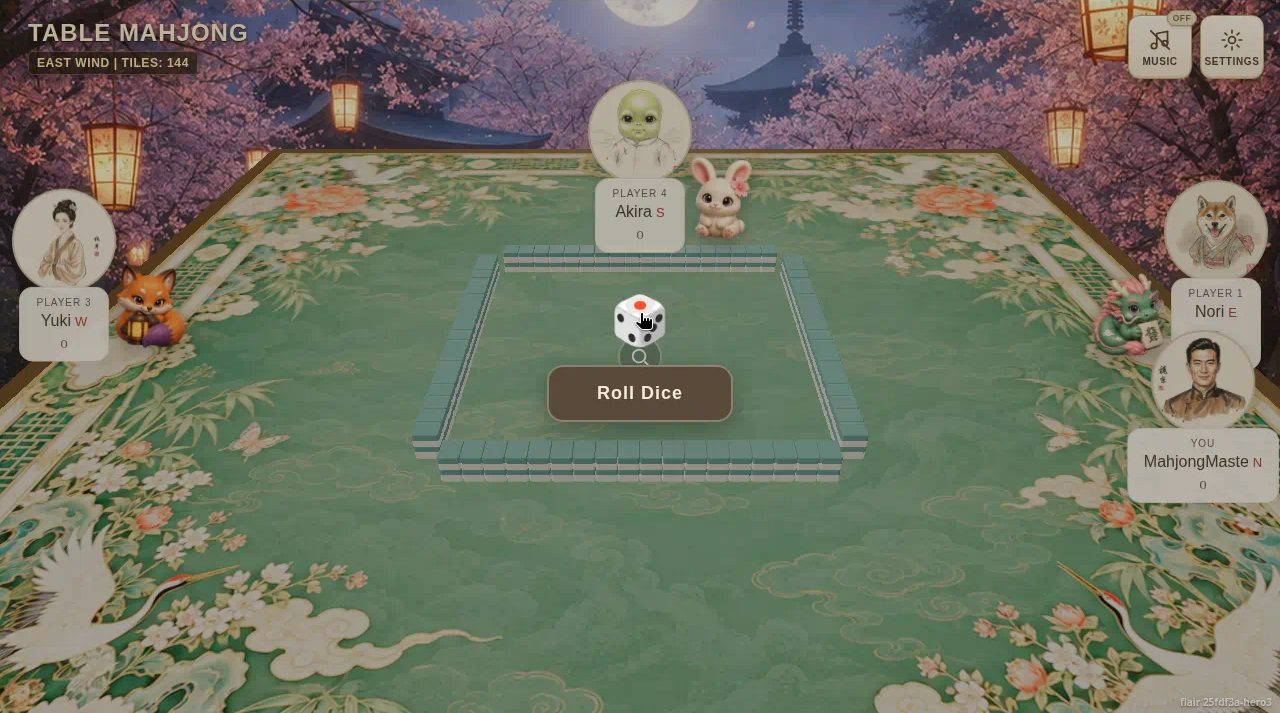
5. Dice
The wall is built and winds are already seated. Roll Dice opens the wall. It does not pick your seat.
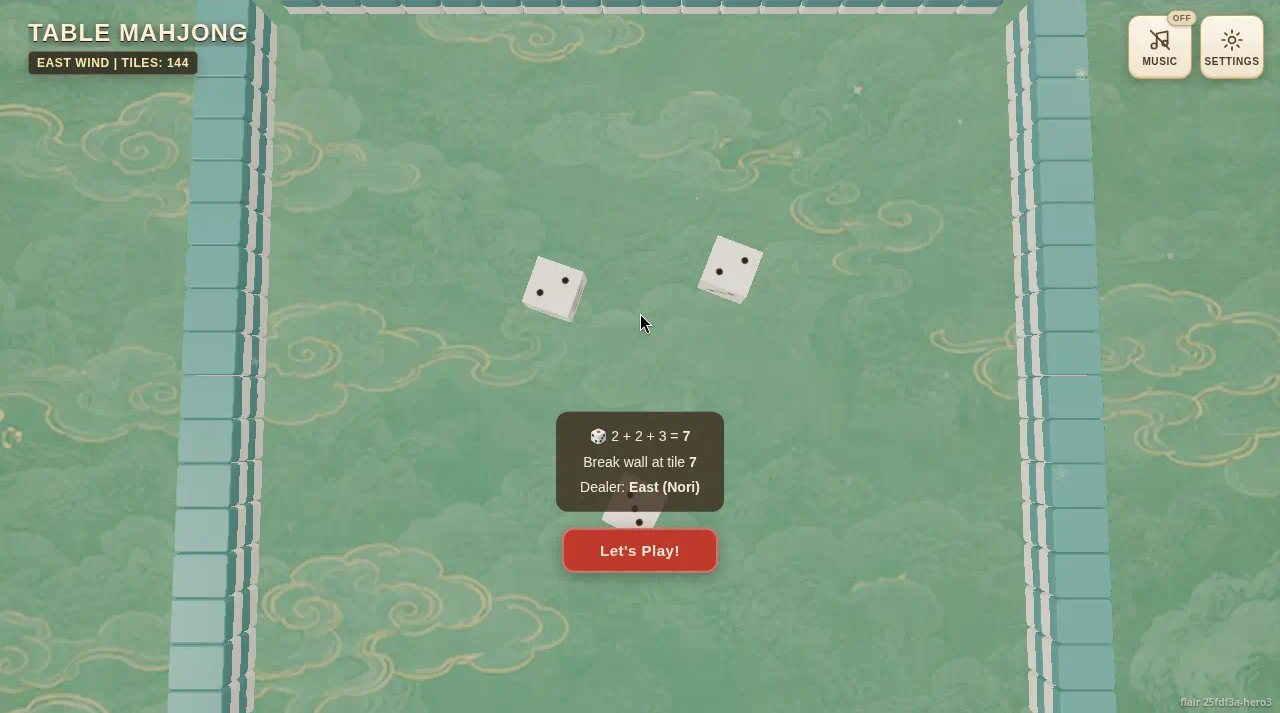
6. The roll
Three dice. Example on the shot: 2+2+3=7, break the wall at tile 7. East is the dealer and plays first (Nori on this shot). Let’s Play deals.
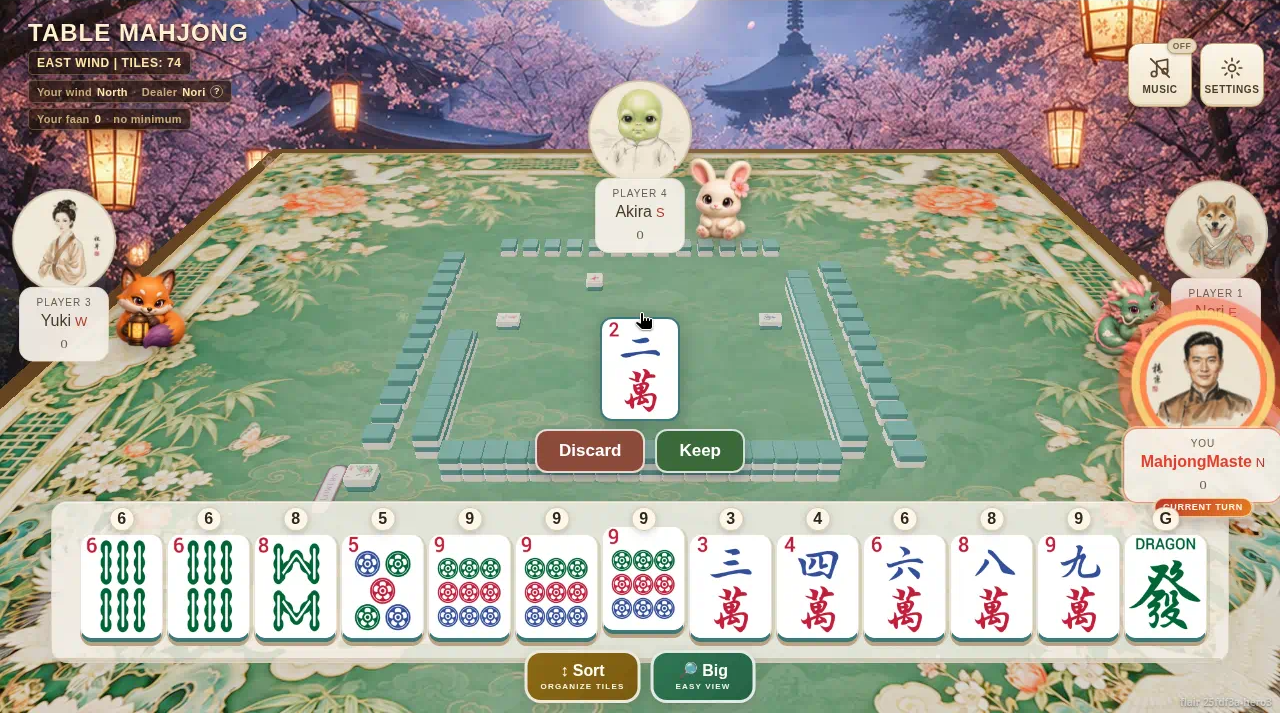
7. Discard or Keep
The popped tile is the one just drawn. Discard throws it away. Keep puts it in the rack, then discard a different tile.
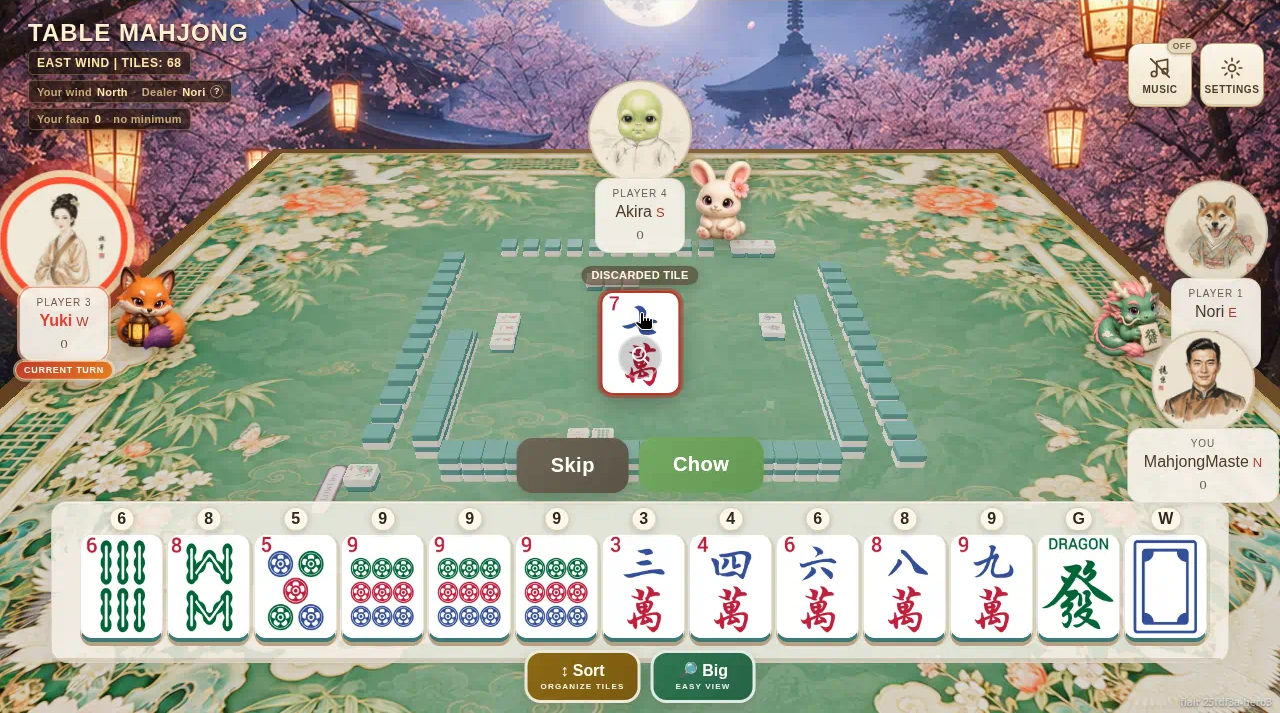
8. Claims
A button appears next to Skip only when it fits. Chow takes the left-hand player’s discard to finish a run (the shot is a 7 character). Pong is three of a kind from anyone. Kong is four of a kind, then a replacement draw. Skip lets it pass.
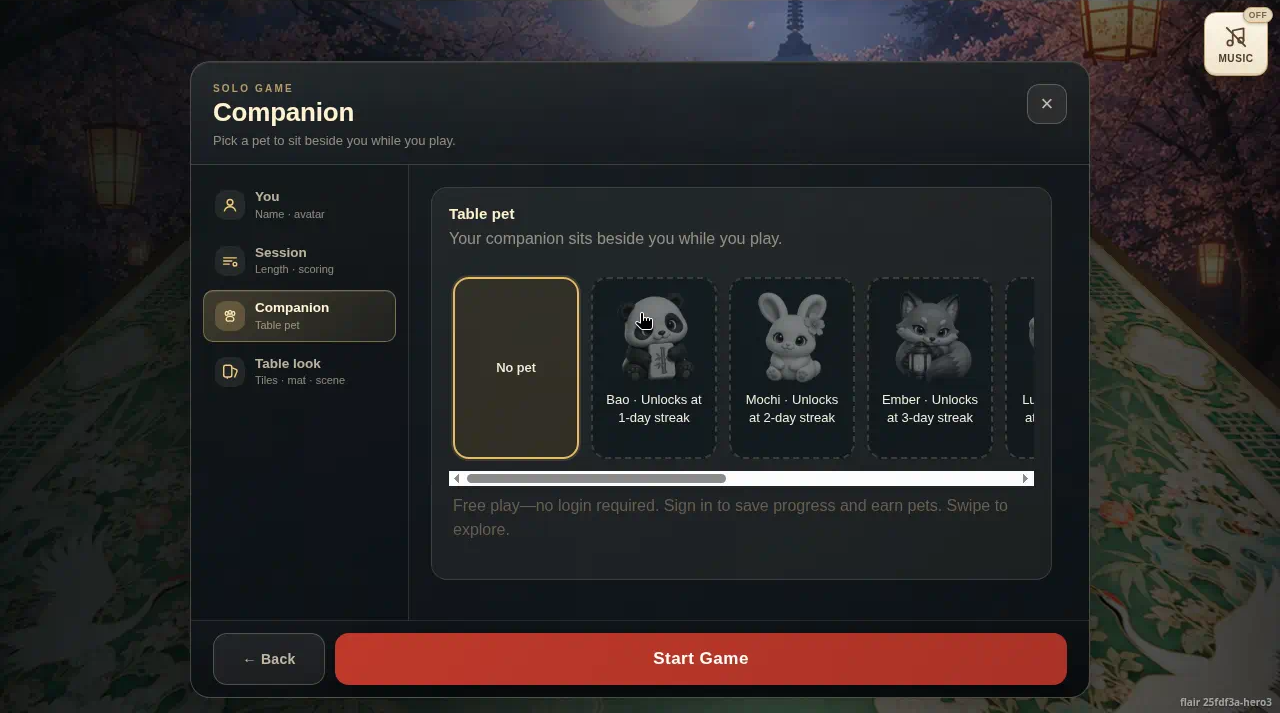
9. Companion
A pet sits beside you. Bao unlocks at a 1-day streak, Mochi day 2, Ember day 3. More at days 5, 7, 10, 14, and 21. Earned pets stay yours. Sign in to save the streak. No pet is allowed.
10. Why sign in
Free without an account. Continue with Google saves progress and the pet streak. Classic tiles, solo, and private rooms work as a guest.
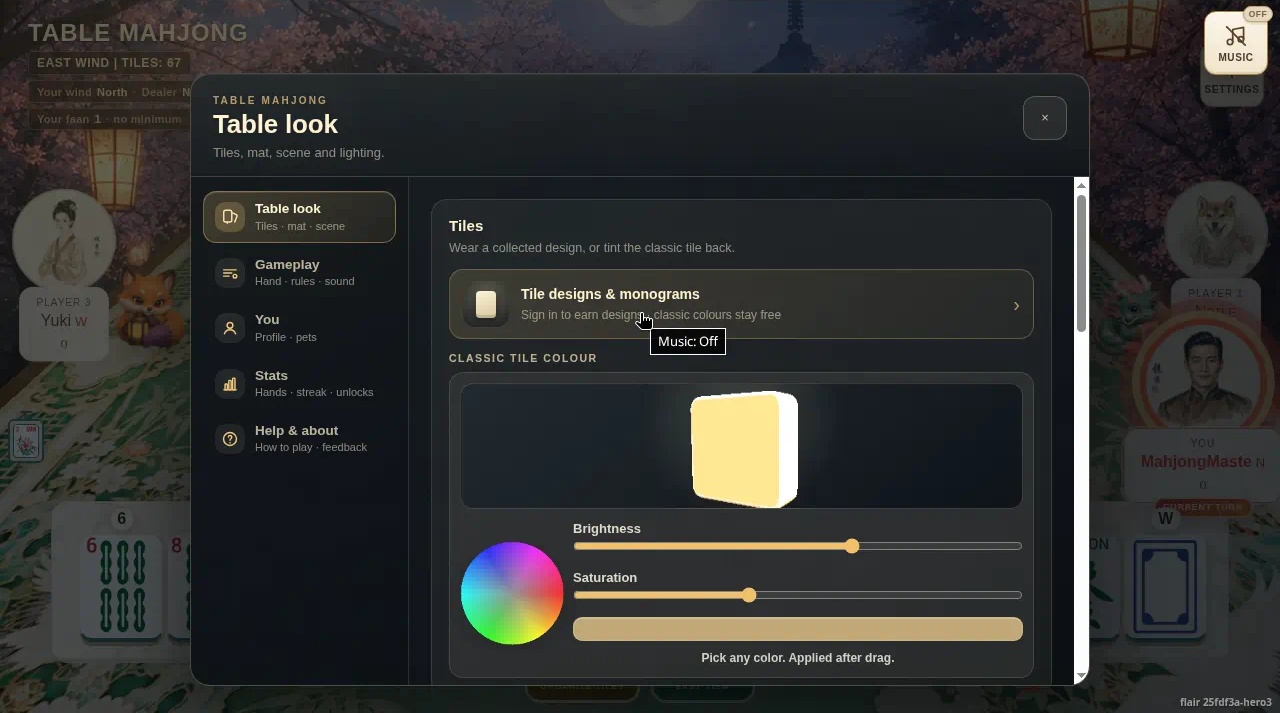
11. Tiles
Settings → Table look. Classic colours are free (colour, brightness, saturation). Collected designs and monograms need sign-in.
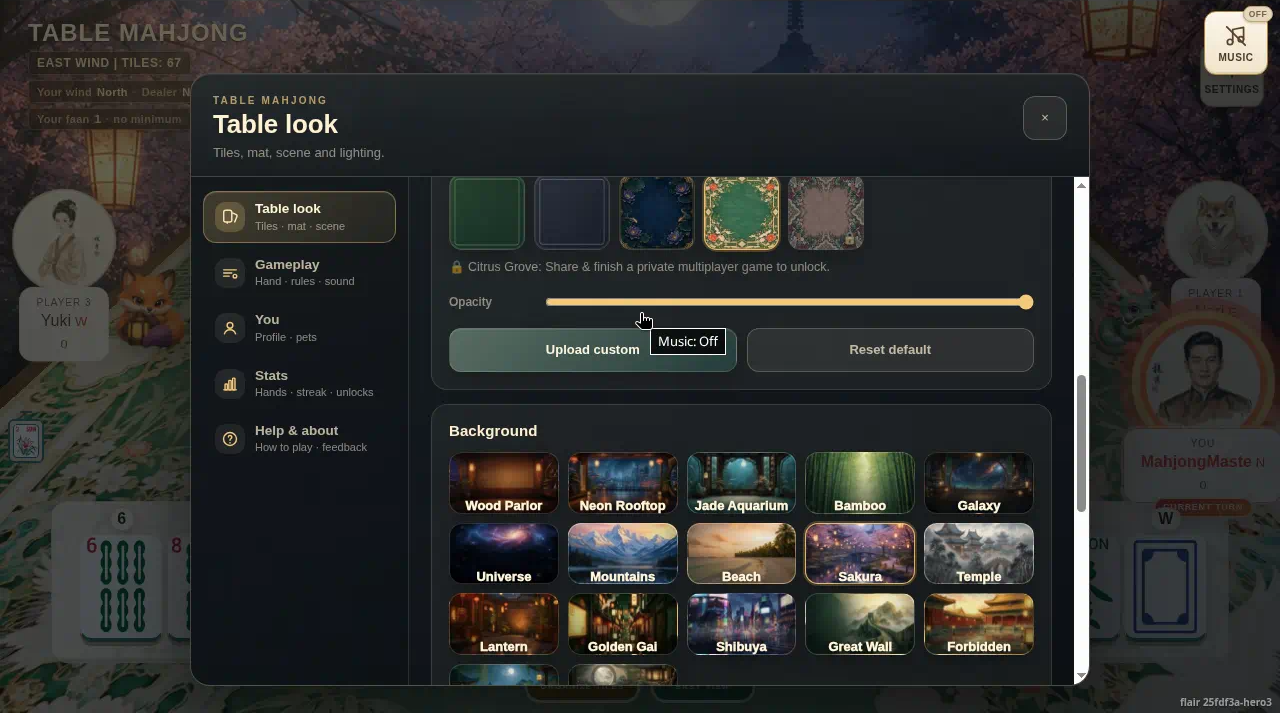
12. Mats and backgrounds
Pick a mat, upload your own, opacity, Reset default. Citrus Grove unlocks after you share and finish a private multiplayer game. Backgrounds are the scene (Sakura, Temple, Wood Parlor, and the rest).
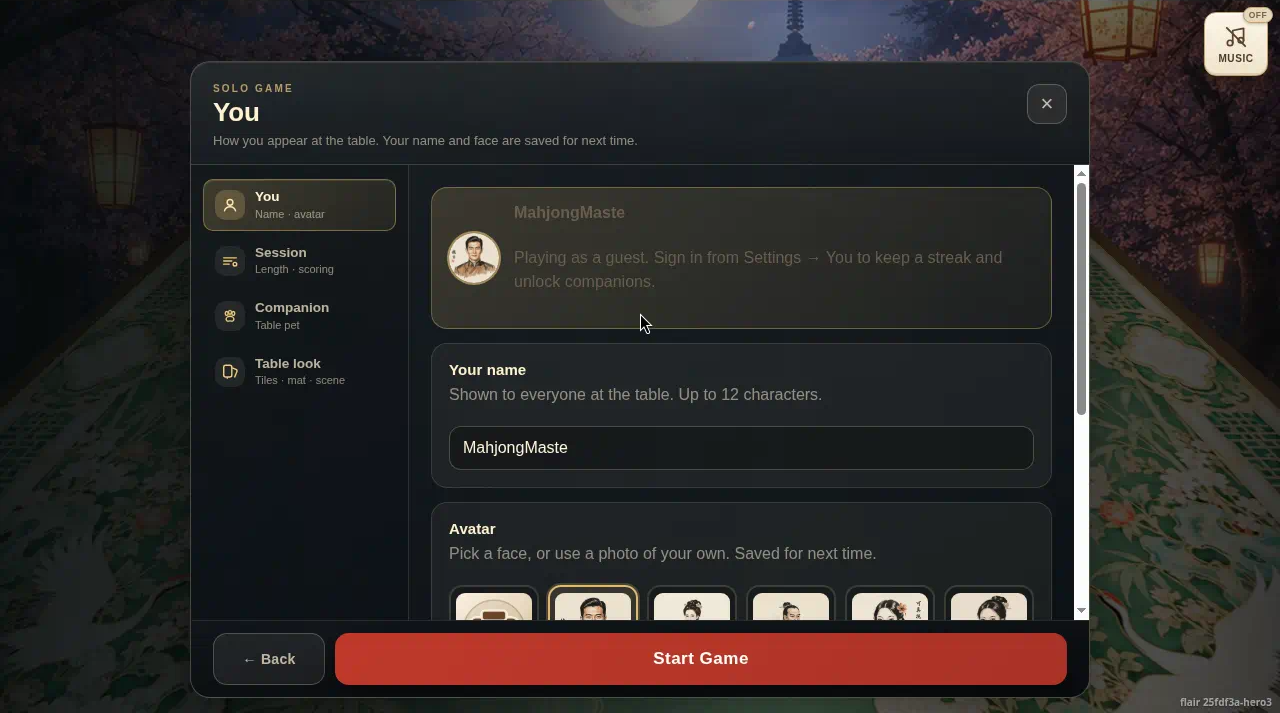
13. You
Name up to 12 characters. Pick a face or add a photo. Saved on this device. Sign-in is what keeps the streak.
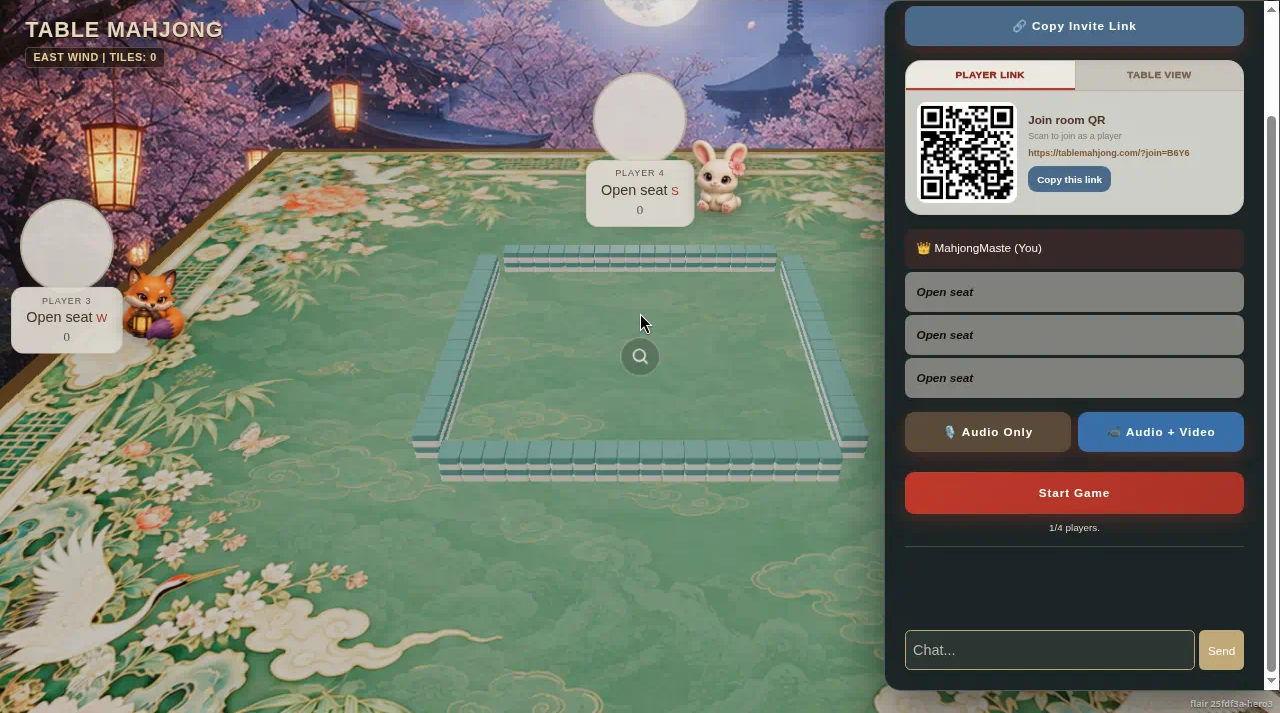
14. Friends room
Invite link and QR. Audio Only is voice. Audio + Video adds camera. Chat at the bottom. Host starts. Empty seats can be filled by AI.